Monitoring a DLT Pipeline with Datadog on Databricks Free Edition
In my previous post, I built a smart grid meter pipeline on Databricks Free Edition. Bronze, silver, gold. DQX quality rules. SCD2 modeling. Terraform managing the whole workspace. It works.
But “it works” and “I’ll know when it stops working” are two very different things. If the pipeline breaks at 2 AM, nobody knows until someone opens the Databricks UI the next morning. I wanted real observability: alerts on pipeline delays, heartbeats to confirm it’s alive, and notifications when data quality degrades.
So I spent an evening integrating Datadog. The short version: about half of Datadog’s built-in Databricks integration doesn’t work on Free Edition. But the production-grade path (custom metrics from pipeline code + Terraform-managed monitors) works perfectly. Here’s everything I learned getting there.
Source code: GitHub
The pattern: app emits, infra alerts
Before diving into errors and fixes, here’s the architecture I was aiming for. The idea comes from a production Databricks + Datadog setup where responsibilities split cleanly:
- Pipeline code emits metrics to Datadog’s API (stage durations, heartbeats, quality signals)
- Terraform defines monitors that query those metrics and fire alerts
The two sides connect through Databricks secret scopes. Terraform provisions the secrets (Datadog API keys). Pipeline code reads them with dbutils.secrets.get(). Metric names are the other contract: code emits smart_grid.dlt.pipeline_delay, and the Terraform monitor queries that exact metric.
DLT Pipeline Run
  │  reads DD keys from secret scope
  │  emits metrics via Datadog API on each flow event
  ▼
Datadog
  │  Terraform monitors evaluate metric queries
  │  threshold breach → alert
  ▼
Slack / Email
In production, the app and infra code live in separate repos. For this project, everything stays in one repo because there’s only one pipeline and one environment.
Service principals on Free Edition: they actually work
Datadog needs a service principal (SP) to authenticate with Databricks. My first assumption was that SPs require account-level APIs, which Free Edition doesn’t have. So I started looking for workarounds.
Turns out I didn’t need one. Free Edition has workspace-level SP management right in the UI:
Settings → Identity and access → Service principals → Add service principal
You can create SPs, generate OAuth secrets, and assign permissions. This is the same lesson I learned with S3 external locations in the first blog: when the Databricks docs are silent about a Free Edition feature, try it in the UI before assuming it’s blocked.
Why a service principal instead of just using my Personal Access Token? Three reasons. Datadog requires OAuth for new integrations, so PATs aren’t an option. An SP has scoped permissions (it only needs read access, not everything I can do as admin). And if I rotate my own credentials or leave, the integration doesn’t break.
The setup takes about two minutes. Create the SP, go to its Secrets tab, generate a secret with maximum lifetime (730 days), and save both the client ID and client secret immediately. The secret is shown exactly once.
Connecting Datadog to the workspace
With the SP created, the Datadog side is straightforward. Go to Integrations → Databricks → Configure → Add Databricks Workspace, and fill in the workspace URL, client ID, and client secret.
The part that’s not straightforward: the Datadog integration wizard is designed for full Databricks deployments with classic clusters. On Free Edition (serverless only), most of the options either don’t apply or actively break things.
Skip the agent setup entirely. The “Managed by Datadog (global init script)” option tries to install an init script on classic clusters. There are no classic clusters on serverless. Selecting it throws a permissions error because the SP can’t create global init scripts. Switch to “Manual” and move on.
The “Monitor Serverless Jobs” toggle is where things get circular. Enabling it requires a SQL Warehouse ID. Providing one causes Datadog to query system.billing tables via that warehouse. But the system catalog is locked on Free Edition (even the workspace admin can’t grant access to it). So Datadog marks the entire integration as BROKEN.
You can’t remove the warehouse ID while serverless monitoring is enabled. And you can’t fix the system catalog access. The only resolution: disable “Monitor Serverless Jobs,” clear the warehouse ID, and save. The integration status goes from BROKEN to healthy, but you lose the built-in job monitoring.
This sounds bad, but it’s actually fine. The built-in monitoring is just the convenience layer. The custom metrics path (next section) is what production systems actually use.
Where things broke
Here are the real errors I hit, with the actual messages. If you’re Googling one of these, this section is for you.
SP display name vs application_id
Error: cannot update grants: Could not find principal with name datadog-integration.Terraform’s databricks_grants expects the SP’s application_id (a UUID like f6acb8ea-0a5c-4ed3-9ff1-86f80ce630fb), not the human-readable name you typed when creating it. The Databricks UI shows the display name prominently and buries the UUID in the details page. Nothing in the error message suggests “try the UUID instead.” You just have to know.
System catalog is locked on Free Edition
Error: cannot create grants: User does not have MANAGE on Catalog 'system'.Neither Terraform nor SQL can grant access to the system catalog on Free Edition. This isn’t a misconfiguration. The catalog is owned by Databricks itself, and Free Edition doesn’t give even the workspace admin MANAGE on it. This blocks Datadog’s cost visibility, serverless monitoring, and quality monitoring features. I removed the system catalog grant from Terraform entirely.
PAT vs OAuth secret: two credentials, two paths
Error: Credential was not sent or was of an unsupported type for this API.After creating the SP, I had two credential strings and accidentally mixed them up. The PAT (dapi...) authenticates me (the human) for Terraform. The SP OAuth secret (dose...) authenticates Datadog (the machine) through the integration config. They go to completely different places, and the error message gives zero indication of what credential type it expected.
The “BROKEN” integration status
The circular problem I mentioned above. Datadog marks the integration as BROKEN because it can’t query system tables, but you can’t fix system table access on Free Edition. Disable serverless monitoring, clear the warehouse ID, accept the limitation.
The custom metrics path: what actually works
With the built-in integration providing only basic job discovery (“NOT MONITORED” status on everything), I pivoted to the production pattern: emit custom metrics directly from pipeline code.
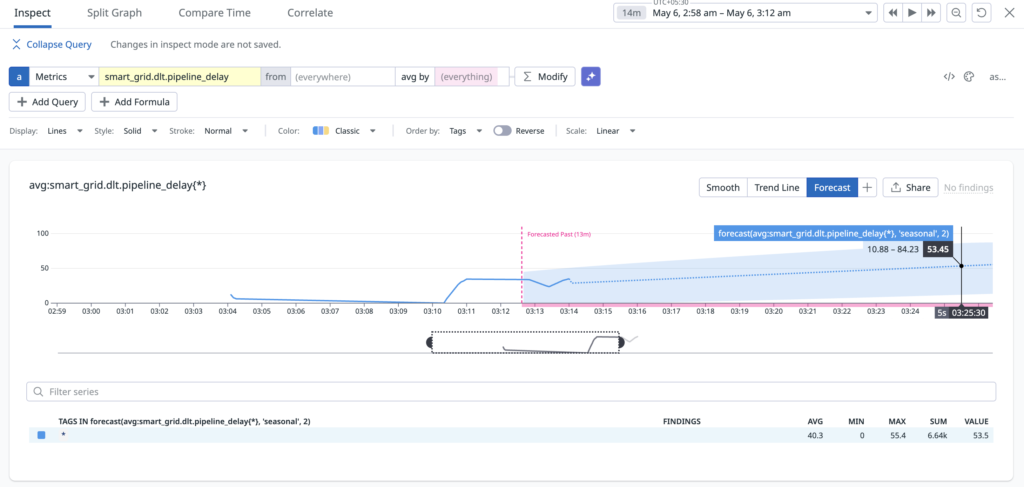
DLT has a feature called @dlt.on_event_hook that fires a callback on pipeline events. I wrote two hooks: one for heartbeats (“is this pipeline alive?”) and one for pipeline delay (“how long did each stage take?”).
The hooks live in notebooks/lib/dlt_hooks.py and call an upload_to_datadog() helper that posts GAUGE metrics to Datadog’s v2 API. Each metric carries tags for client, environment, task name, catalog, schema, and a unique update_id so backfills don’t collide with production runs.
The key design choice: a spark conf toggle controls whether hooks fire.
mode = spark.conf.get("log_datadog", "false").lower()
if mode in {"continuous", "by_hook"}:
    set_pipeline_delay_hook(fallback_catalog=CATALOG, spark=spark)
    set_heartbeat_hook(fallback_catalog=CATALOG, spark=spark)
Set log_datadog = "false" in dev and "continuous" in environments that should emit. No code changes needed, just a Terraform variable flip.
Gotchas in the hooks
Getting the hooks working was the most time-consuming part of the whole integration. Four issues:
DLT rejects duplicate hook names. Both hooks initially had inner functions named _hook. DLT registers hooks by function name globally, not scoped to the enclosing function. Rename them to pipeline_delay_hook and heartbeat_hook.
You cannot define multiple hooks with the same name.Event timestamps are strings, not ints. The DLT event gives you event["timestamp"] as a string. The Datadog API expects an int. Add int(event["timestamp"]).
Invalid type for variable 'timestamp'. Required value type is int and passed type was strDon’t trust event schemas from production references. This was the hardest one. The pipeline delay hook was ported from a production codebase that filtered on maturity_level, level, and extracted executor_time_ms. None of these fields exist in the DLT event payload on the current runtime. The hook silently discarded every event and the metric never appeared. No error, no warning, just nothing in Datadog.
The fix: stop trying to parse internal event fields. Use the same minimal filter as the working heartbeat hook (event_type == "flow_progress") and compute duration from wall-clock time using time.time(). The metric appeared immediately.
Datadog’s .as_count() requires the sum aggregator. The heartbeat monitor query used avg with .as_count() and Datadog rejected it at terraform apply time. Changed to sum. The Terraform provider docs don’t warn about this.
.as_count() monitors must use the 'sum' time aggregatorMonitors as code
Three monitors, all Terraform-managed:
- Pipeline delay (P2): Alert if any DLT stage takes longer than 10 minutes. Uses
avg(last_15m):avg:smart_grid.dlt.pipeline_delay{env:${var.env}} > 600. - Pipeline heartbeat (P1): Alert if no heartbeat for 30 minutes. The pipeline might be down or stuck. This is the “is this thing alive?” signal.
- Quarantine spike (P2): Alert if more than 100 rows hit quarantine in 15 minutes. Signals a data quality regression in upstream sources.
The message body matters more than the threshold. Each monitor includes specific triage steps: what to check first, which tables to query, where to look in the UI. At 3 AM, nobody reads the monitor name. They read the message.
All three are gated with count = var.enable_monitoring ? 1 : 0 so dev environments stay quiet. Tags include managed_by:terraform so anyone looking at the monitor in Datadog knows not to edit it by hand.
The Free Edition feature matrix
After all the trial and error, here’s what actually works:
| Datadog Feature | Works? | Why |
|---|---|---|
| Custom metrics (pipeline code) | Yes | Direct Datadog API calls from DLT hooks |
| Datadog monitors (Terraform) | Yes | Query custom metrics, alert on thresholds |
| Job discovery (Job Coverage page) | Partial | API polling finds jobs, but shows “NOT MONITORED” |
| Full job monitoring (built-in) | No | Requires system tables or classic clusters |
| Monitor Serverless Jobs | No | Requires system table access |
| Datadog Agent (init script) | No | No classic clusters on serverless |
| Cloud Cost Management | No | Requires system.billing tables |
The first two rows are what matters. Custom metrics emitted from pipeline code + Terraform-managed monitors querying those metrics. That’s the production pattern, and it works on Free Edition without compromise.
The partial job discovery (row 3) is a nice bonus. After about 15 minutes of propagation, Datadog detected the workspace and listed the NRT simulator job with basic metadata (run count, failure rate, last seen). But clicking “Enable Serverless Monitoring” leads right back to the system table requirement. So the job stays in “NOT MONITORED” state permanently on this tier.
End result
After one evening of work, the pipeline has three layers of observability:
- Metric emission. DLT hooks emit
smart_grid.dlt.pipeline_delayandsmart_grid.dlt.heartbeaton every pipeline run. 25 flows (all tables and views in the DAG) report metrics with proper tags. Controlled byspark.conf.get("log_datadog"). - Monitors. Three Datadog monitors watch those metrics and alert on thresholds. Triage steps baked into every alert message. Gated per environment.
- Infrastructure. Secret scopes, SP grants, workspace files, pipeline config, and Datadog provider setup all managed via Terraform. One
terraform applydeploys everything.
If Databricks opens system tables on Free Edition in the future, the built-in integration would start working automatically with no code changes. Until then, the custom metrics path provides everything I need.
Takeaways
Service principals work on Free Edition. Create them at Settings → Identity and access. Same lesson as S3 external locations: try it before assuming it’s blocked.
The built-in Databricks integration is partial on Free Edition. It can discover jobs but can’t monitor them. Don’t spend time fighting system table permissions. Go straight to custom metrics.
App emits, infra alerts. Pipeline code pushes metrics to Datadog. Terraform defines the monitors. Secret scopes bridge the two. This pattern works on any compute tier because it has zero dependency on agents or system tables.
Don’t trust event schemas from other codebases. DLT’s @dlt.on_event_hook event payload varies by runtime version. Start with the simplest possible hook (heartbeat), confirm it works, then add complexity. If a metric isn’t appearing, the likely cause is a filter silently discarding every event.
Pin your SDK versions. datadog-api-client==2.33.1 in the %pip install line. Databricks runtimes ship their own packages, and version mismatches cause subtle failures.
Source code: GitHub
Previous post: Building the Pipeline